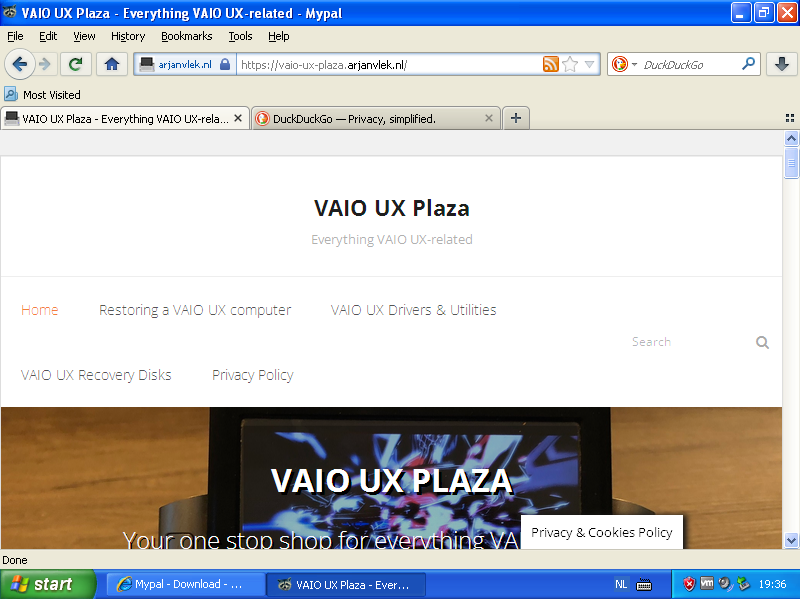
When using an older computer with Windows XP or Windows Vista, such as the Sony VAIO UX computers we discuss on this website, you may have noticed that it is no longer really possible to browse the web on it.
You will likely have seen error messages, or websites looked ugly / broken.
While it was very doable to browse the web on older computers a few years ago, most modern websites have become too complex and are using more secure connections, which the browsers on XP and Vista can’t handle. All well-known browsers have stopped getting updates on Windows XP or Vista, so you can’t update your browser to fix this issue.
With many people being interested in retrocomputing, a developer named Feodor has created a more up to date version of Firefox for Windows XP and Vista. This browser is called ‘Mypal 68’. You stil can use Mypal 68 to browse the modern web, as it still supports a lot of modern web technologies as well as more modern HTTPS security, which are needed to visit modern websites.
The author of this website is not affiliated with Mypal, but reccommends it to use on older computers.
Instructions Last updated: May 2nd, 2026
To get the Mypal browser, you’ll have to follow a few steps.
1. On your old computer, open Internet Explorer and go to http://www.mypal-browser.org/download.html This website is specifically designed for old browsers, so it should work, but If you don’t have internet set up right now, you can also download Mypal on a more modern computer and copy the installation file to your old computer, for example using a USB flash drive.
2. Download New version – 78.0.1.
Remember to use Save, not Open.
Edit 2026-05-02: The link currently gives a 404 not found error. You can still download the browser by going to the “releases directory” at the bottom of the page. On there, pick the most recent release.
3. Open the downloaded Mypal 78 .ZIP file and extract all files to a directory of your choice.
4. Open the File Explorer and navigate to C:\Program Files
5. Check if a directory named “Mypal” exists. If not, create it.
6. Go to the directory where you’ve extracted Mypal 78.
Copy all files inside the mypal directory (Ctrl+A) and paste them in C:\Program Files\Mypal).
[If upgrading from a previous version]: When asked to overwrite existing files and/or directories, say ‘Yes to all‘.
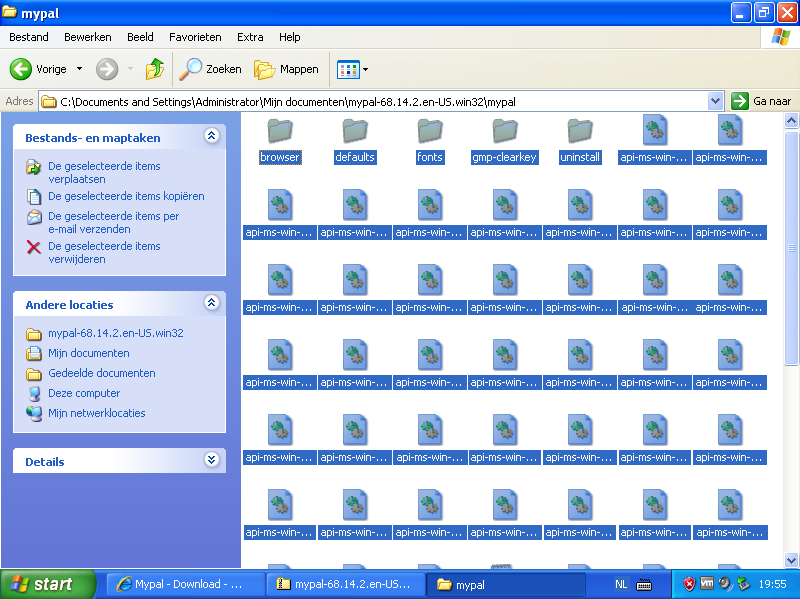
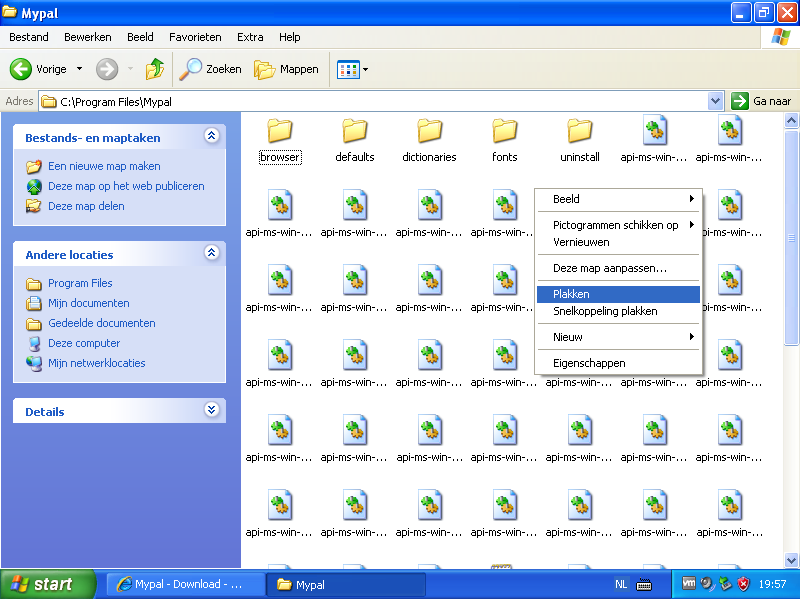
Copy all files from the installation directory (left) to destination directory (right). Overwrite any existing previous installation of Mypal if already present
7. When all files are copied, right-click on ‘mypal.exe’ and select “Send to” -> “Desktop (create shortcut)” to create a shortcut
8. Open Mypal using the shortcut that you’ve just created.
Voila, you should now have a Firefox 68 browser on your XP or Vista computer!
To verify that you have the latest version of Mypal, open it and check if looks like the picture below.

If the top bar looks different, like on the second picture below, you have not the latest version, but are still on Mypal 29.3.0. If you’ve previously installed this, make sure you copied the Mypal 68/78 installation files to the correct directory, overwriting the old Mypal 29 files.